
How to Reset Your Password on UpCentral
If you need to reset your password on UpCentral, follow these simple steps: Step 1: Access the UpCentral Login Page
- Open your web browser and go to the UpCentral login page: **https://upcentral.app**.Step 2: Request a Magic Code
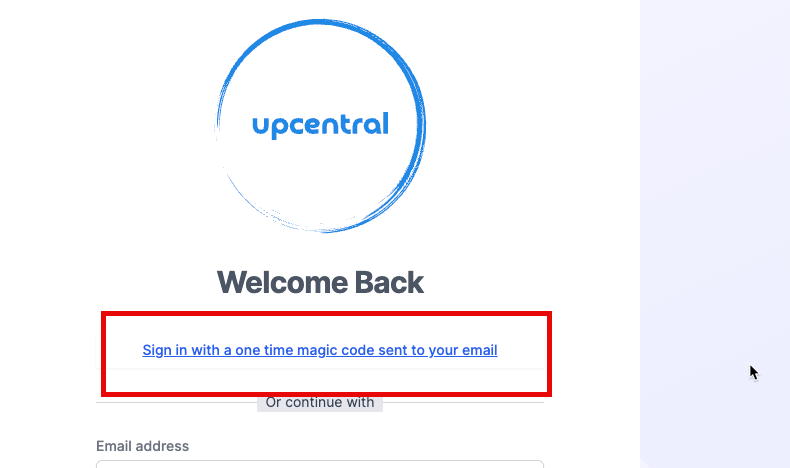
- Click on the link that says "Sign in with a one time magic code sent to your email". This link is highlighted in the red box in the first image.- Enter your registered email address when prompted, and click Send Magic Code. A one-time magic code will be sent to your email.
Step 3: Sign In Using the Magic Code
- Check your email for the magic code sent by UpCentral.- Enter the magic code in the provided field on the UpCentral login page.Step 4: Navigate to Your Profile
- Once logged in, click on your profile icon located at the top right corner of the page.- From the dropdown menu, select "Your Profile".

Step 5: Reset Your Password
- In the Edit Profile section, you will see an option to reset your password.- Click on "Reset Password".- Follow the on-screen instructions to create and confirm your new password.Tips
- Make sure your new password is strong and secure, combining uppercase letters, lowercase letters, numbers, and special characters.- If you don't receive the magic code in your email, check your spam or junk folder.By following these steps, you can easily reset your password on UpCentral and ensure your account remains secure. If you encounter any issues, contact UpCentral support for further assistance.