
How to Send a Group Message on UpCentral
Group messaging on UpCentral enables you to communicate with multiple people simultaneously, making it perfect for coordinating groups or sharing updates efficiently
Please Note: There is a maximum limit of 10 participants in a single group message.
Steps to Send a Group Message:
Start a New Conversation
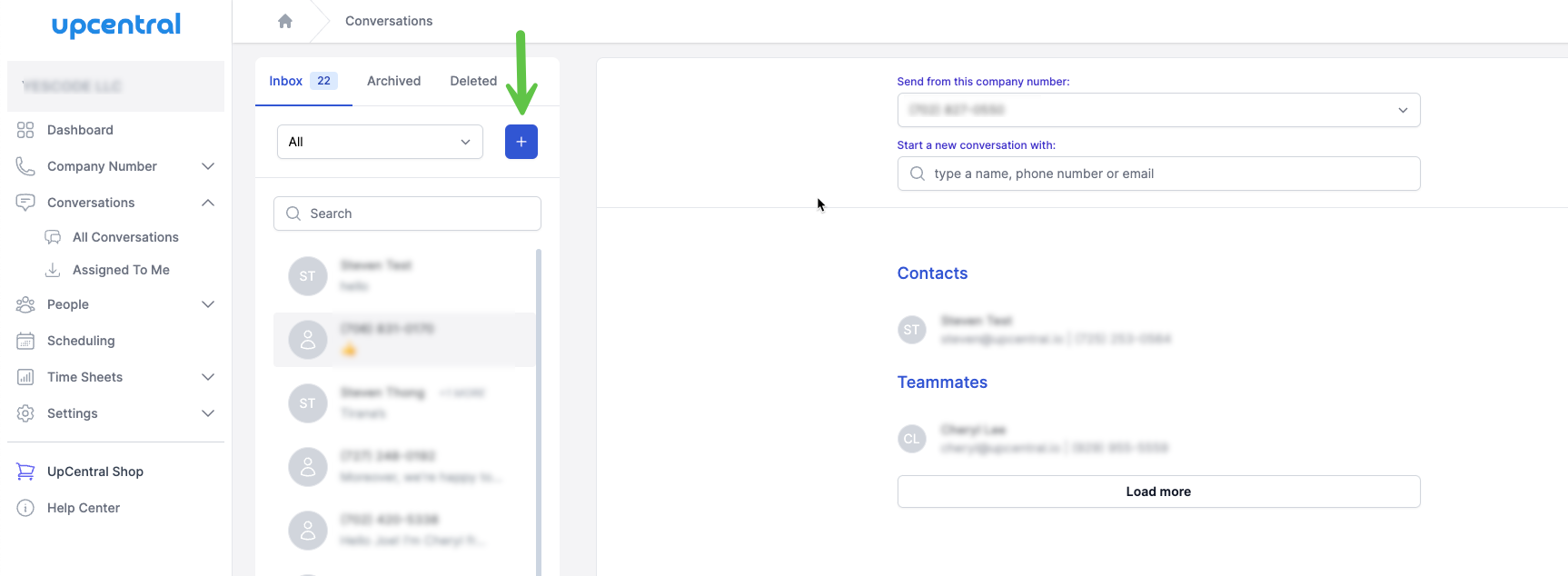
- Navigate to the Conversations page and begin as you would with any conversation by selecting the 'New Conversation' button- Choose (or type the phone number of) your initial participant to add to the group message.
Add More Participants
- Once your conversation window is active, you can include additional people by clicking on the 'Add Participant' button.
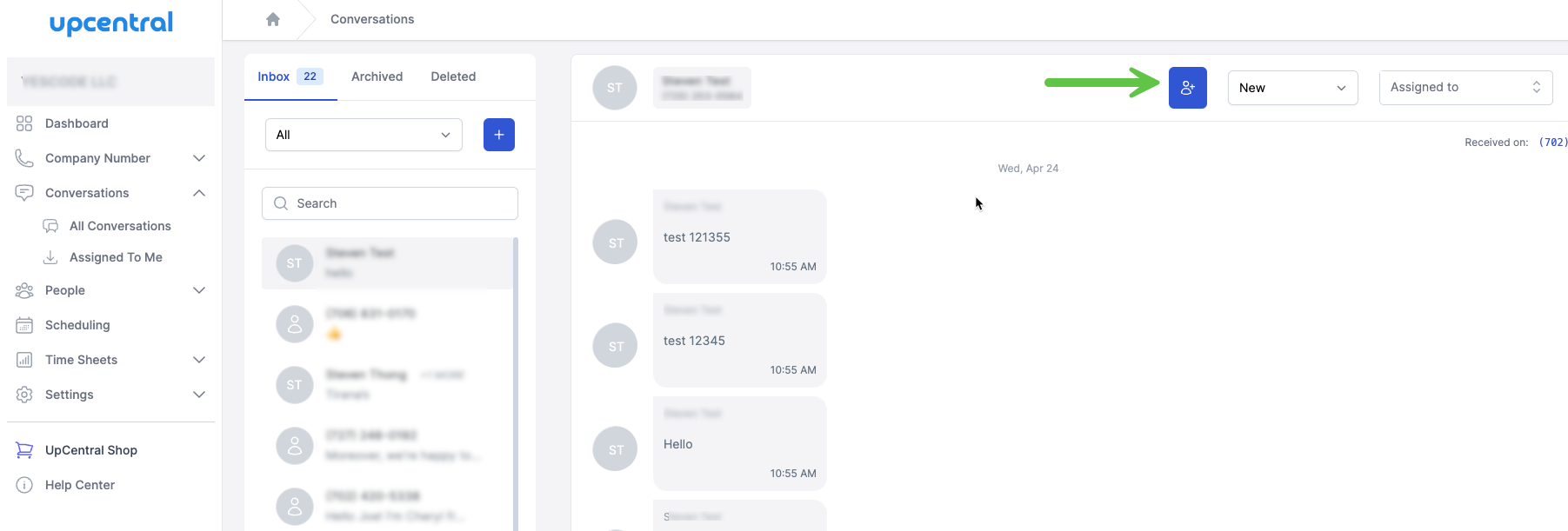
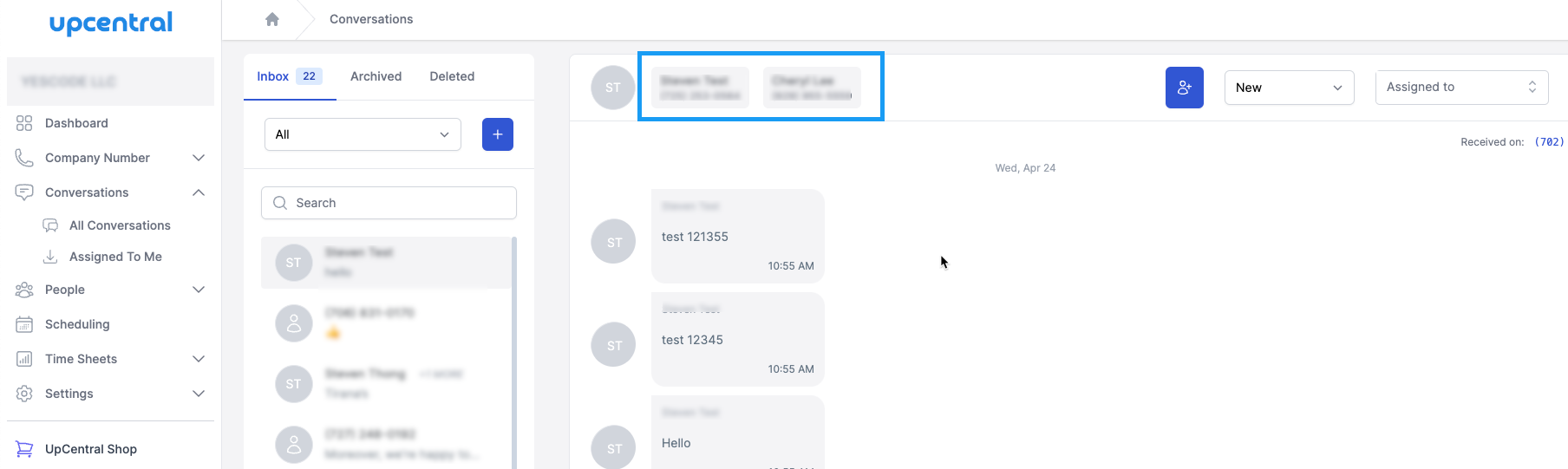
- Continue to add participants until your group is complete, remembering the 10-person limit. Here's how it looks after you created group text/conversation:
Compose Your Message
- With all participants added, click into the text box at the bottom of the screen.Type your message. You can also attach files or images if your message requires visual aids.
Send Your Message
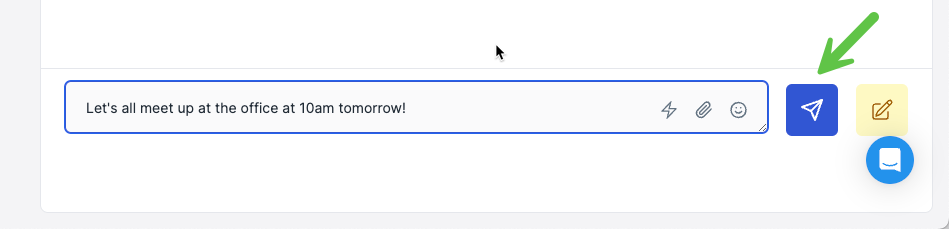
- Once you are satisfied with your message, send it by clicking the 'Send' button.
With these steps, you should be able to effectively communicate with a group on UpCentral, whether for personal coordination or broader announcements.